
Hostinger Email Setup Guide: Professional Email Solutions for Businesses and Individuals
In today’s digital world, having a professional email address is essential for maintaining credibility and efficient communication. Whether you’re managing personal correspondence, running a small business, or leading a large team, Hostinger’s email services offer reliable, affordable, and easy-to-manage solutions.
This comprehensive guide explores Hostinger’s email plans, their features, and step-by-step setup instructions. You’ll also learn how to connect your email to popular clients like Gmail and Apple Mail, secure your account, and resolve common issues.
Types of Hostinger Email Services
Hostinger provides three main types of email services, each designed to meet specific needs — from basic users to growing businesses.
Table of Contents
1. Free Email (Included with Hosting Plans)
Hostinger’s free email service is bundled with most web hosting packages starting at $2.49/month.
This option is perfect for individuals or small startups looking to create a custom email address (e.g., yourname@yourdomain.com) without extra costs.
Key Benefits:
- Ideal for personal and small business use
- Matches your domain for a professional look
- No additional cost with hosting plans
2. Google Workspace Email
For advanced business communication, Hostinger integrates Google Workspace (starting at $5.99/month). It includes Gmail, Google Drive, Calendar, and Docs, all accessible with your custom domain email.
Why Choose Google Workspace:
- Premium email hosting with Gmail interface
- Seamless collaboration with Google apps
- Enterprise-level reliability and security
3. Business Email (Professional Solution)
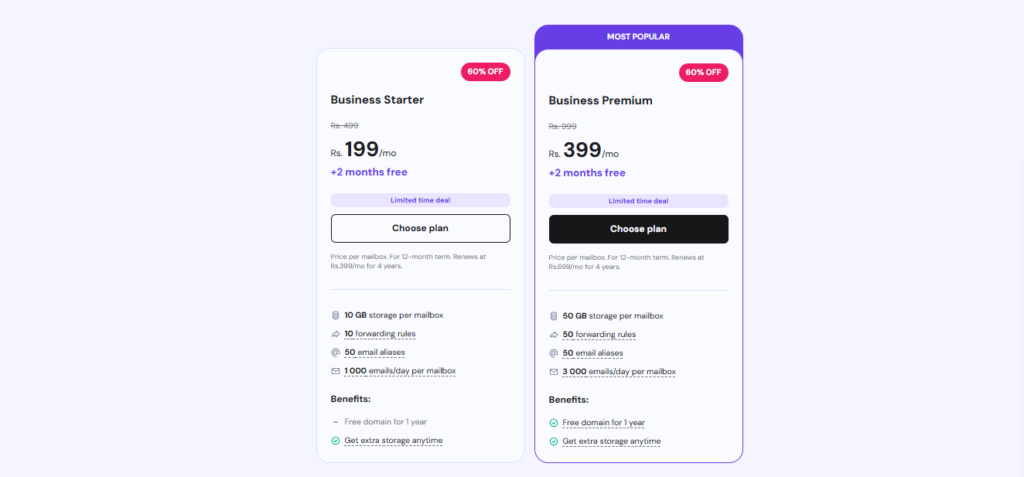
Hostinger’s Business Email plans start at $0.99/month, offering enhanced storage, spam protection, and additional aliases. It’s perfect for growing teams and organizations needing a secure, professional communication platform.
Read Also Article: Hostinger Review 2025
Highlights:
- Advanced spam and virus protection
- Larger mailbox capacity
- Free domain with Business Premium plan
Hostinger Email Plans Comparison
| Feature | Free Email | Business Email | Google Workspace |
|---|---|---|---|
| Starting Price | $2.49/month (with hosting) | $0.99/month | $5.99/month |
| Spam Protection | Basic | Advanced | Advanced |
| Storage | Standard | Larger | 30GB+ |
| Domain Matching | ✔️ | ✔️ | ✔️ |
| Collaboration Tools | ❌ | ❌ | ✔️ |
| Best For | Personal use | Small/Medium businesses | Enterprises & teams |
How to Create a Hostinger Email Account
Hostinger’s hPanel makes it easy to manage and set up your email.
Step-by-Step Setup Guide
- Log in to your Hostinger account and open hPanel.
- Go to Emails → Set up free email service → Set up.
- Select your domain and confirm.
- Choose an email plan (e.g., Free or Business).
- Enter your email name and a strong password, then click Create.
Pro Tip:
Always use SSL/TLS encryption for enhanced security.
- SMTP with SSL: Port 465
- SMTP with STARTTLS: Port 587
- IMAP: Port 993
- POP3: Port 995
How to Configure Email Clients
While you can access your mailbox directly via mail.hostinger.com, connecting to popular email clients provides additional convenience and offline access.
You can find connection details in hPanel → Manage → Connect Apps & Devices.
1. Setting Up Hostinger Email on Apple Mail
- Go to hPanel → Manage → Connect Apps & Devices.
- Under Apple auto-configuration, click Set up Apple devices.
- Enter your display name and select your Hostinger email address.
- Scan the QR code or download the profile.
- On your Apple device, open Settings → Profile Downloaded and install it.
- Enter your email password and confirm setup.
2. Connecting Hostinger Email to Gmail
Web Setup
- Open Gmail → Settings → See all settings → Accounts and Import.
- Under Send mail as, click Add another email address.
- Enter your name and Hostinger email address.
- SMTP Server:
smtp.hostinger.com, Port: 465. - Enter your Hostinger credentials, click Add Account, then confirm via email.
Mobile Setup
- Open the Gmail app → Settings → Add Account → Other.
- Enter your Hostinger email and password.
- Choose IMAP as the account type.
- Incoming Server:
imap.hostinger.com - Outgoing Server:
smtp.hostinger.com - Configure sync preferences and complete setup.
Troubleshooting Common Hostinger Email Issues
Below are solutions to frequently encountered problems.
| Issue | Common Cause | Solution |
|---|---|---|
| Can’t send or receive emails | Disabled service or incorrect MX records | Verify email service and DNS configuration |
| Emails disappearing | POP3 settings removing messages | Use IMAP or enable “Leave copy on server” |
| Delayed deliveries | High traffic or misconfiguration | Check mail queue and resend |
| Emails bouncing | Invalid address or blacklisted IP | Read bounce message and check blacklist |
| Spam folder issues | Spammy content or missing SPF/DKIM | Authenticate domain and review content |
| Deleted account recovery | Account removed accidentally | Restore within 15 minutes via hPanel |
| SMTP encryption error | Port conflict or misconfig | Switch from port 465 to 587 |
Email Security Best Practices
- Enable 2FA on your Hostinger account.
- Use SPF, DKIM, and DMARC records to authenticate your emails.
- Regularly update passwords and avoid public Wi-Fi for email access.
Conclusion
Hostinger’s email solutions offer everything from free basic services to enterprise-grade Google Workspace integration. With robust features, secure connections, and easy setup via hPanel, users can maintain professional and reliable communication on any device.
Whether you’re managing a personal website or running a business, Hostinger Email provides the flexibility, security, and scalability needed to keep your digital communications professional and efficient.
FAQs – Hostinger Webmail
1. What is Hostinger Webmail?
Hostinger Webmail is an email service that lets you send, receive, and manage emails using your domain name. It’s included with Hostinger’s hosting plans and can be accessed through hPanel.
2. How can I access Hostinger Webmail?
You can log in to Hostinger Webmail by visiting webmail.hostinger.com or directly from your hPanel dashboard under the “Emails” section.
3. Does Hostinger provide free email accounts?
Yes. Hostinger includes at least one free email account with most hosting plans. You can also upgrade to Google Workspace for advanced business features.
4. How do I set up Hostinger Webmail on mobile or desktop apps?
Use the IMAP/SMTP settings provided in your hPanel email configuration section. You can integrate it with apps like Outlook, Apple Mail, or Gmail.
5. Can I use my domain name with Hostinger Webmail?
Absolutely. You can create professional email addresses like info@yourdomain.com using your own domain hosted on Hostinger.
6. What are the benefits of using Hostinger Webmail?
Hostinger Webmail offers easy management through hPanel, strong spam protection, reliable uptime, and mobile compatibility for seamless communication.